Installation Instructions
Step 1)
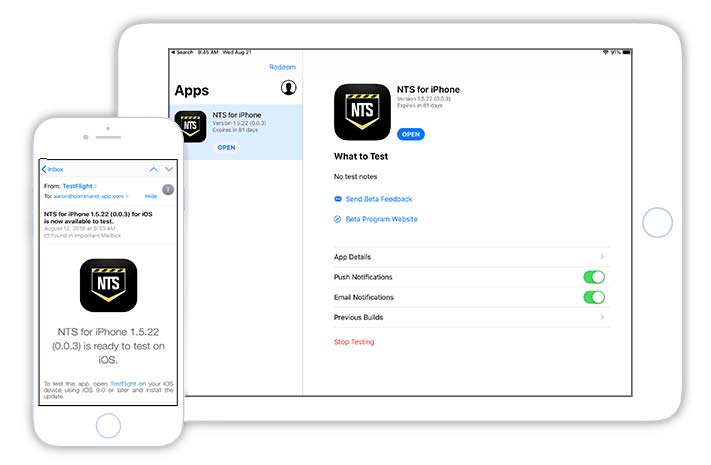
You will receive an email from TestFlight with an opportunity to install the NTS app for your device. Click the icon in your email on your device and install TestFlight if you don't have it already installed. It will then prompt you to install the NTS app once TestFlight is on your device.
For Android users, please contact us at support@command-app.com and we will issue access to the Public BETA for you.
You will receive an email from TestFlight with an opportunity to install the NTS app for your device. Click the icon in your email on your device and install TestFlight if you don't have it already installed. It will then prompt you to install the NTS app once TestFlight is on your device.
For Android users, please contact us at support@command-app.com and we will issue access to the Public BETA for you.
Step 2)
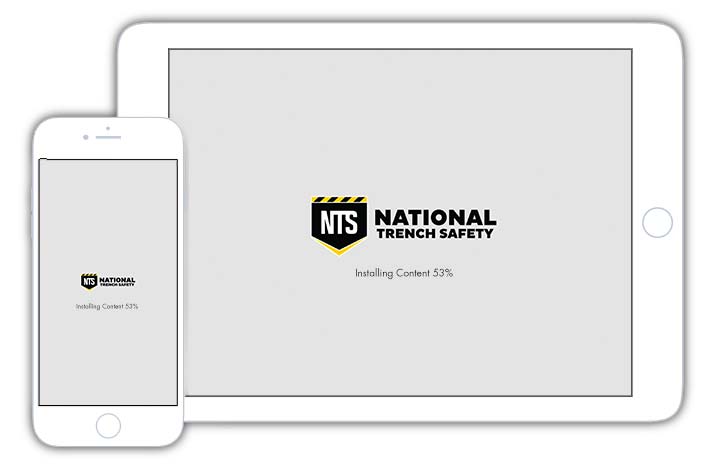
Once the app has installed on your device, launch it from your home menu. This is where all content will be installed for the first time.
Be sure to have a good data or wifi connection and be patient as all content is being installed.
Once the app has installed on your device, launch it from your home menu. This is where all content will be installed for the first time.
Be sure to have a good data or wifi connection and be patient as all content is being installed.
Step 3)
Once all content has installed, the app will launch. This is the Consumer or (standard user) default app store version. Tab data files and quote builder accessibility is not available.
Instead, we will run through the process of what approved users will do.
Once all content has installed, the app will launch. This is the Consumer or (standard user) default app store version. Tab data files and quote builder accessibility is not available.
Instead, we will run through the process of what approved users will do.
TO REQUEST ACCESS:
Touch the Tab Data Search button, this will launch a form that must be completed by the user. It will send an email to whomever NTS would like to be administering user access.
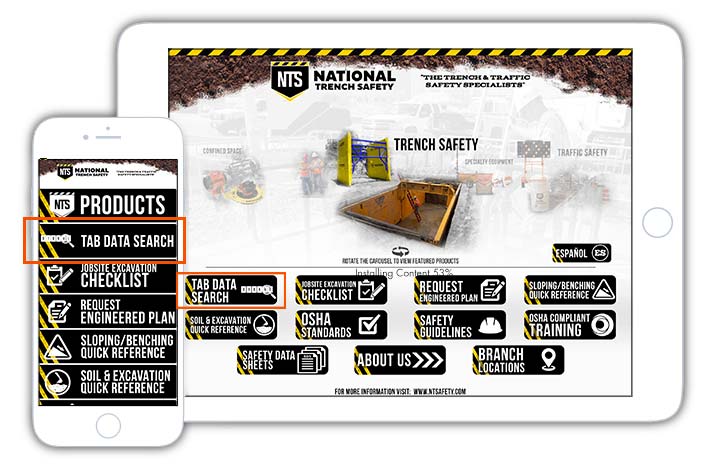
Figure 1 - Select Tab Data Search
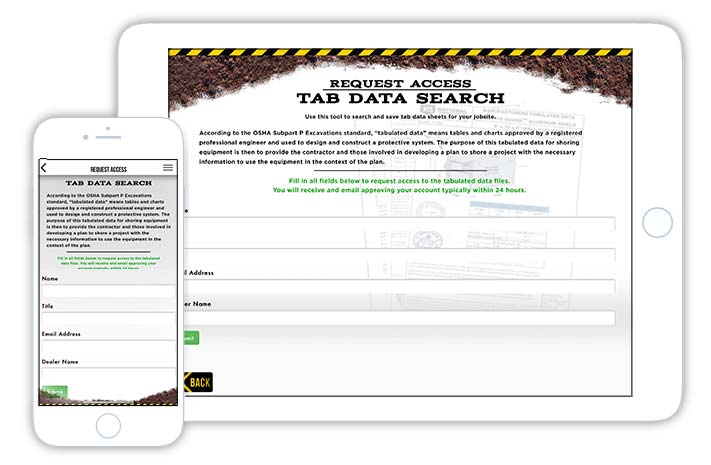
Figure 2 - Request Access Form
Step 4)
After review of the sent request by NTS and approval, the system administrator will create a user in the online portal along with a password.
To do this, access the portal here: https://member.command-app.com. Type in your administrator username and password.
After review of the sent request by NTS and approval, the system administrator will create a user in the online portal along with a password.
To do this, access the portal here: https://member.command-app.com. Type in your administrator username and password.
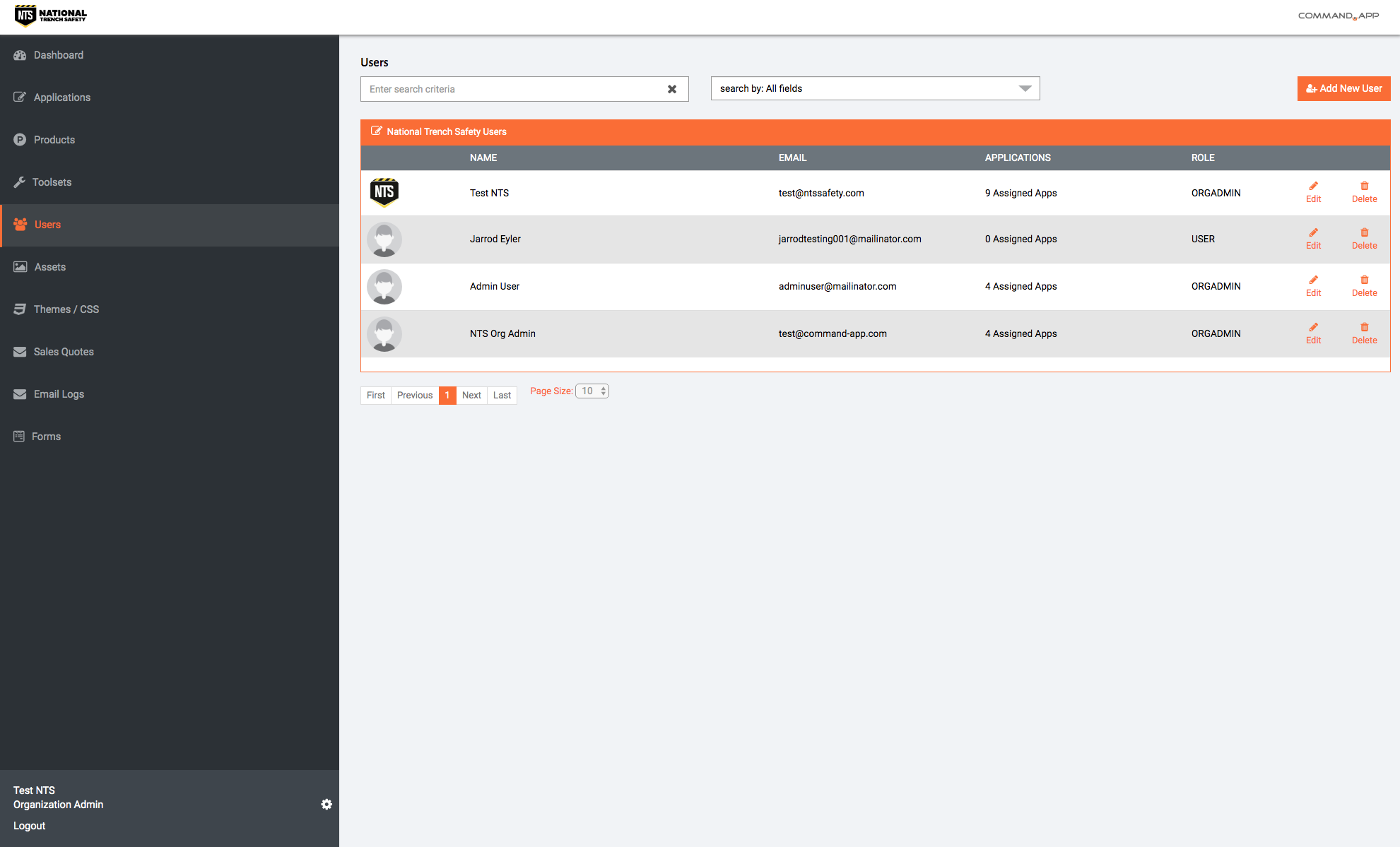
Figure 1 - Select Users in Builder on left-hand side, then select ADD NEW USER
Figure 2 - Fill out user information and create username (email address) and unique password
Step 5)
Once you have added the new user, make sure to have noted their username and password. The system administrator will now send an email to the new approved user with their access information.
Once you have added the new user, make sure to have noted their username and password. The system administrator will now send an email to the new approved user with their access information.
GRANTED ACCESS:
Once the user has received their approved username and password, they will navigate back to their NTS app and touch the hamburger menu in the top right corner to open the login dashboard.
The user can now touch Login and is prompted with a warning to confirm they have access.
The user can now touch Login and is prompted with a warning to confirm they have access.
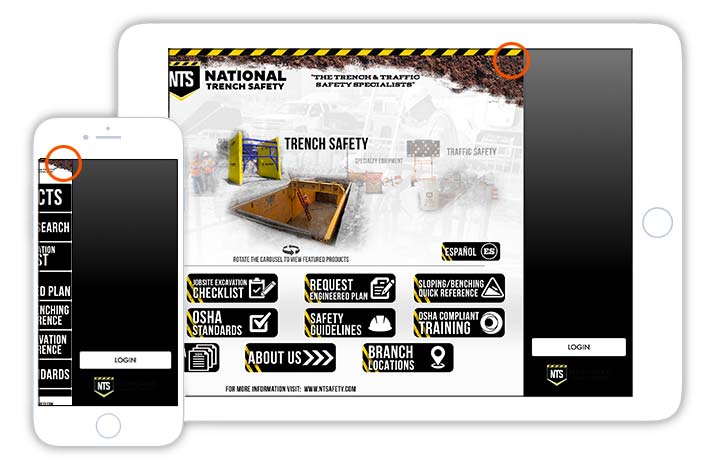
Figure 1 - Touch the hamburger menu from the top right and touch LOGIN
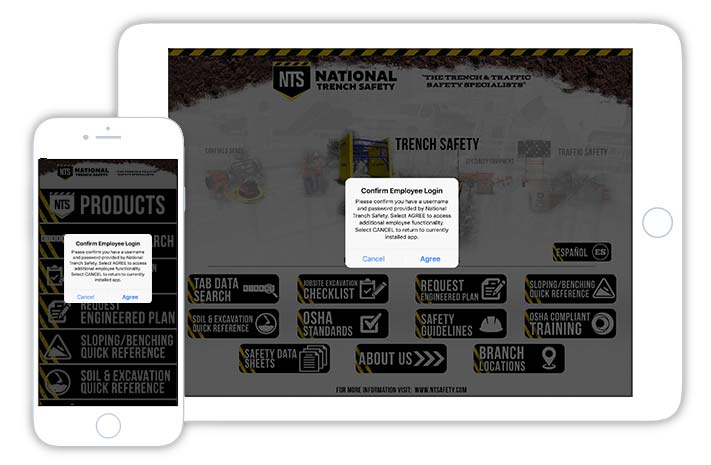
Figure 2 - Confirm Employee Login
Step 1)
After the user has touched AGREE and confirmed that they do have a login, it will take them to the login dashboard.
After the user has touched AGREE and confirmed that they do have a login, it will take them to the login dashboard.
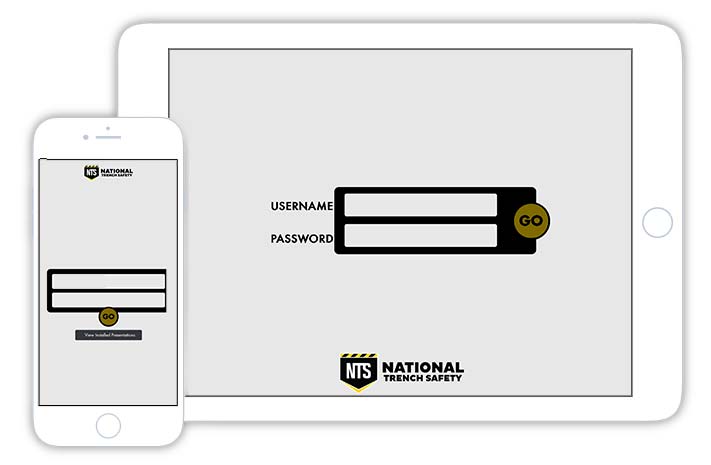
Figure 1 - Enter USERNAME and PASSWORD supplied by your system administrator.
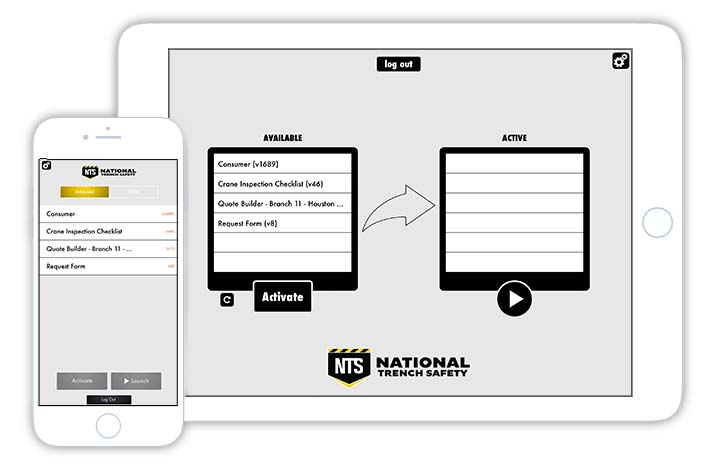
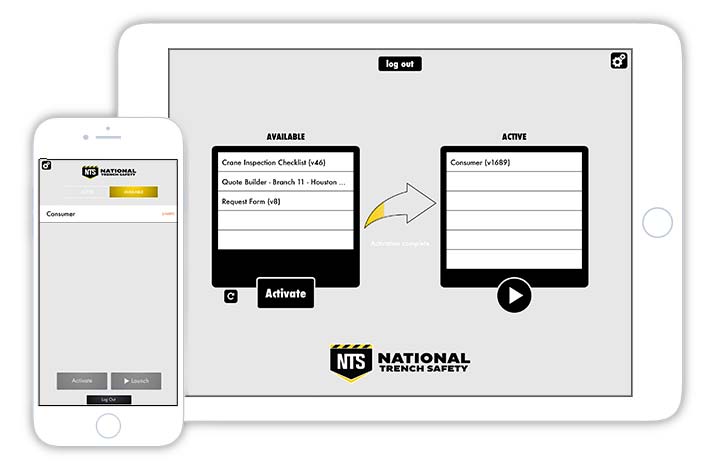
Figure 2 - Once logged in, the user's available apps are located in the available menu
Step 2)
Select the application you would like to install to your device and then touch ACTIVATE.
This is the installation process and will take a little time, be patient and let it install. Once installed, it will appear in your ACTIVE panel. To launch, select the name from the list and touch the LAUNCH / PLAY button.
Select the application you would like to install to your device and then touch ACTIVATE.
This is the installation process and will take a little time, be patient and let it install. Once installed, it will appear in your ACTIVE panel. To launch, select the name from the list and touch the LAUNCH / PLAY button.